How do I search and use the results page?
Last updated: August 13, 2025
Horizons is designed for investigative work—searching across billions of public records from diverse sources like corporate registries, trade data, property records, sanctions lists, and more. Unlike a simple web search engine, Horizons treats every record as part of a structured, cross-jurisdictional dataset.
This means:
Your searches scan all indexed text from multiple file types (CSV, PDF, HTML, JSON, and more).
By default, multiple words are treated as separate terms (OR logic), unless you use quotation marks or Boolean operators.
Search is paired with powerful filtering tools so you can quickly move from a broad set of matches to a precise set of investigative leads.
Basic Search
Type a word or phrase into the search bar and press Enter.
Horizons checks all available datasets and file types for matches.
Example:
Searching
Johnreturns all records containing “John.”Searching
John Doe(no quotes) returns results with either “John” or “Doe.”
To search for the exact phrase “John Doe,” use quotes:
"John Doe"
Boolean Search (Advanced Search Operators)
Boolean operators give you more control over your search logic:
OperatorWhat it DoesExample | ||
AND | Finds results containing both terms |
|
OR | Finds results containing either term (default behavior) |
|
NOT | Excludes results containing a term |
|
" " | Searches for the exact phrase |
|
Tip: Use Boolean operators when screening large datasets or narrowing results to relevant entities.
Refer here for the full Advanced Search guide.
The Search Results Page
Once you run your query, you land on the Results Page, which combines your search matches with tools to refine, review, and act on them.
1. Results View
Displays all matches for your search in yellow highlighting
Click a record to preview without leaving the page.
Bookmark important files directly into an Investigation so you can revisit them later.
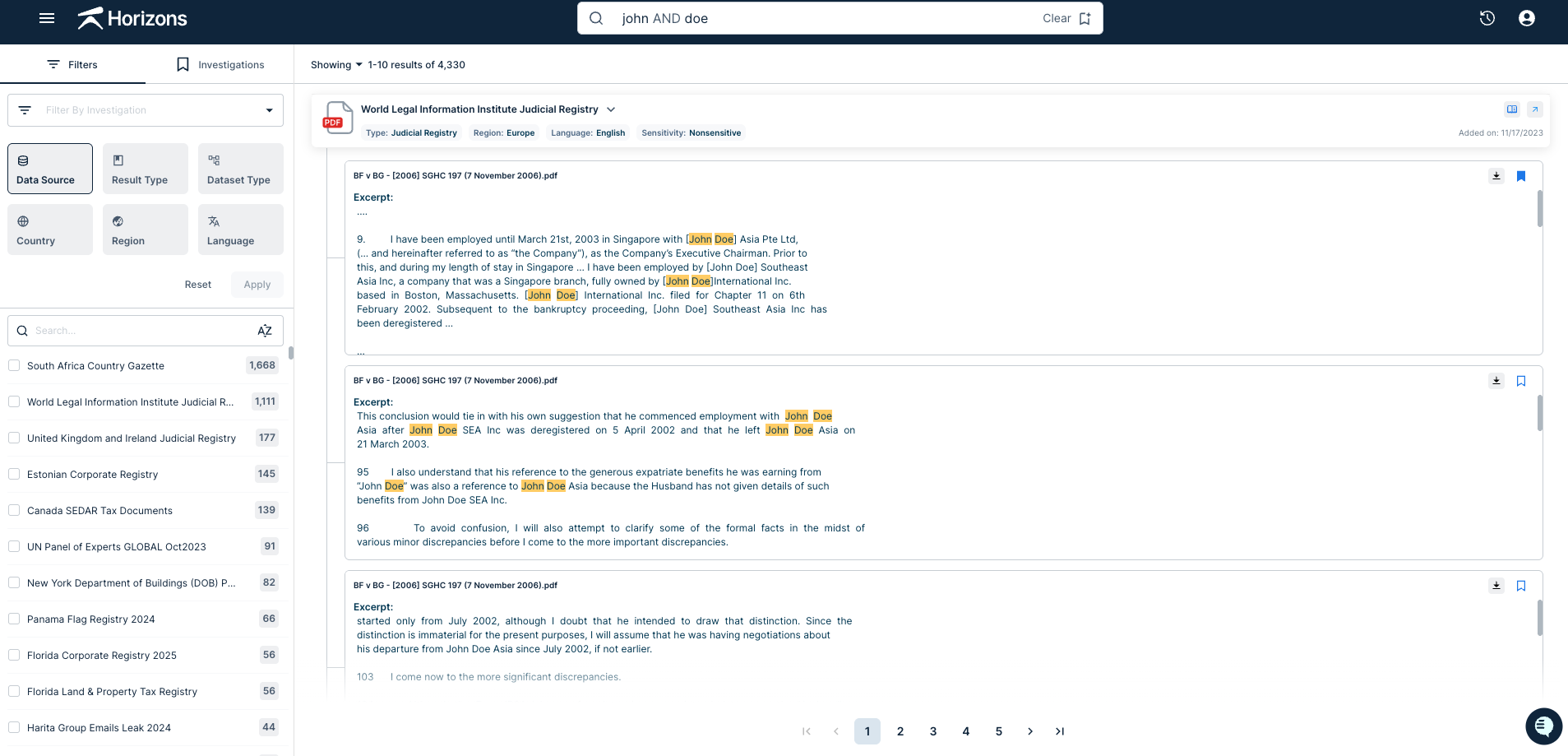
2. Filters Panel (Left Side)
Refine your results by:
Data Source – Select one or more datasets.
Result Type – Choose file-level or entity-level results.
Dataset Type – Focus on specific categories (e.g., corporate records, property records, trade data).
Country/Region – Limit results geographically.
Language – Narrow results by document language.
Tip: Filters can be combined for very targeted searches. For example, search "John Doe" in corporate datasets from South America, in Spanish.
3. Actions You Can Take
Preview – See the file or record details instantly.
Download – Save individual files to your computer.
Bookmark – Save relevant files into an Investigation for organized analysis.
Data Dictionary – Learn about a dataset’s origin, structure, and update schedule.