What is Bulk Search and How Do I Use It?
Last updated: August 13, 2025
Bulk Search lets you quickly screen multiple search terms at once - perfect for lists of names, companies, vessels, or other entities. Instead of entering them one by one, you can upload them in a single CSV file and review results in one place.
How to Use Bulk Search in Investigations
Create a New Investigation
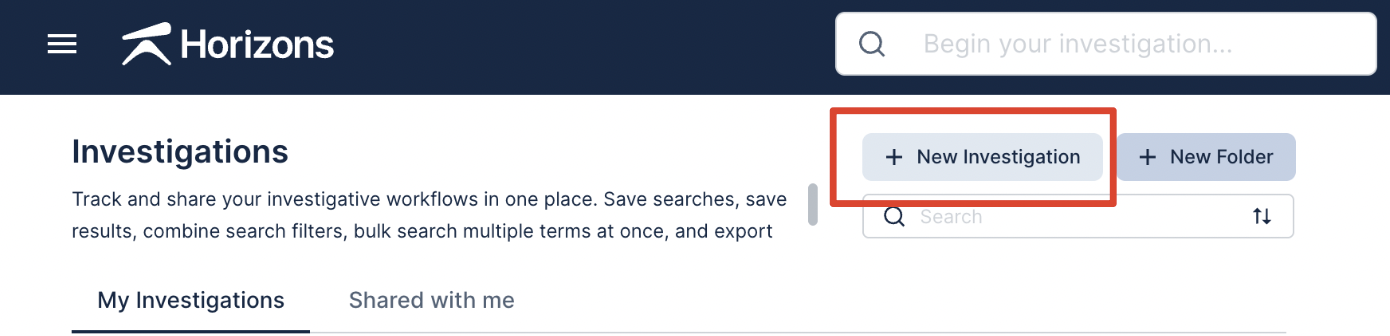
Go to the Investigations feature. Click New Investigation to start a workspace.
Import Your Search Terms
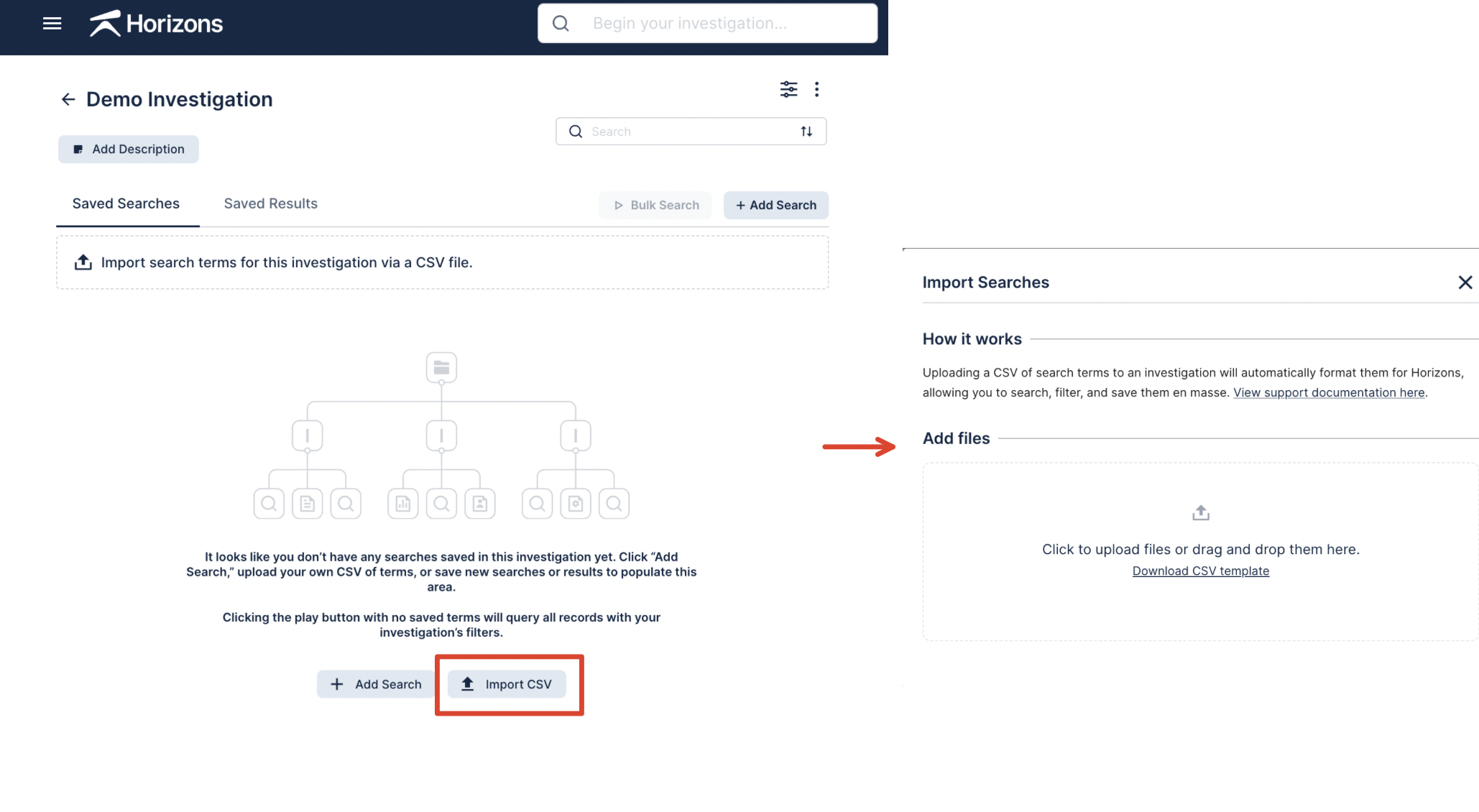
In your investigation, select Import Search Items.
Upload a CSV file containing your list of terms.
Tip: A CSV template is available if you’re unsure about the required format.
Review the Import Preview
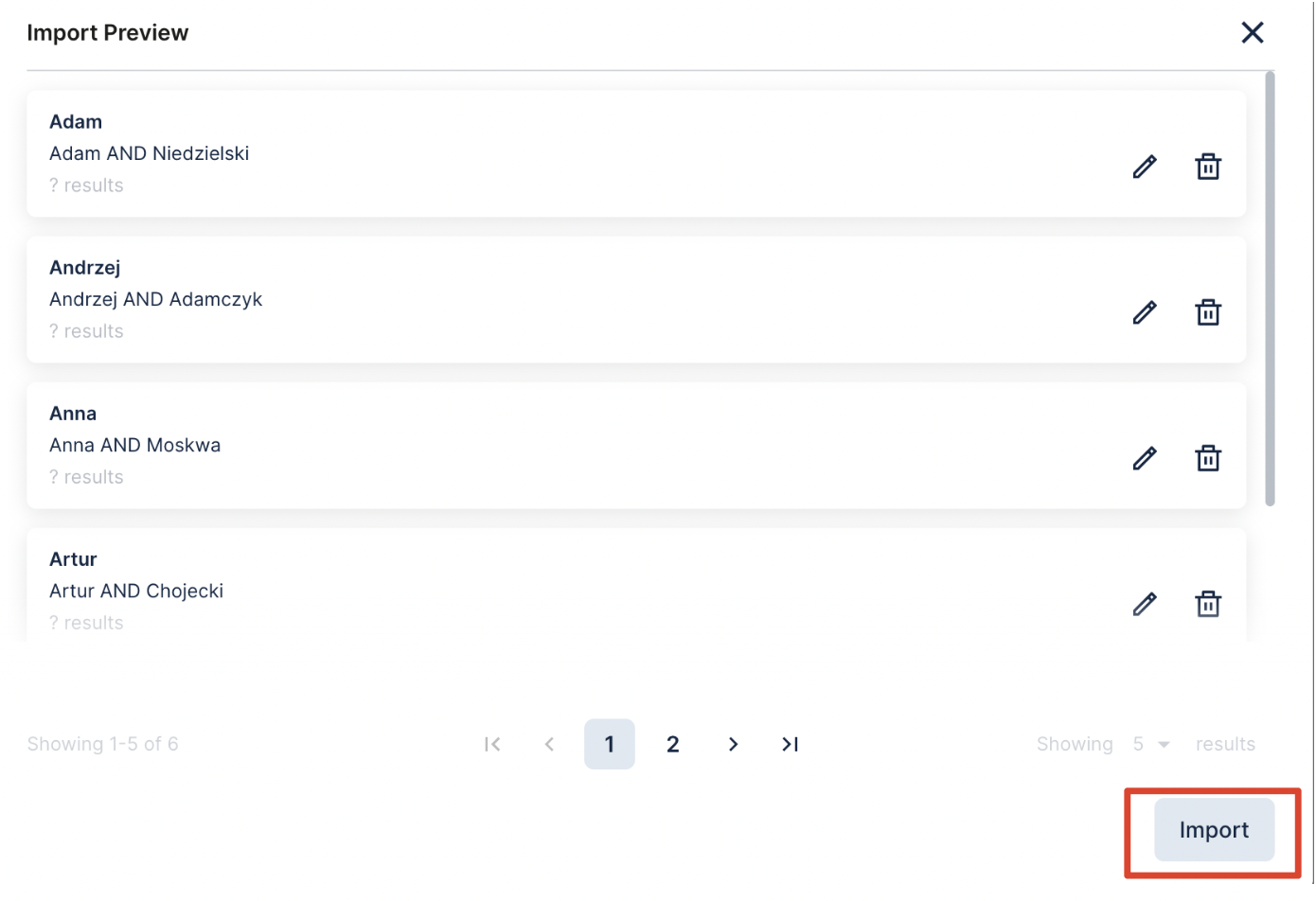
You’ll see a preview of your uploaded terms before they’re added.
If everything looks correct, click Import.
Run the Bulk Search
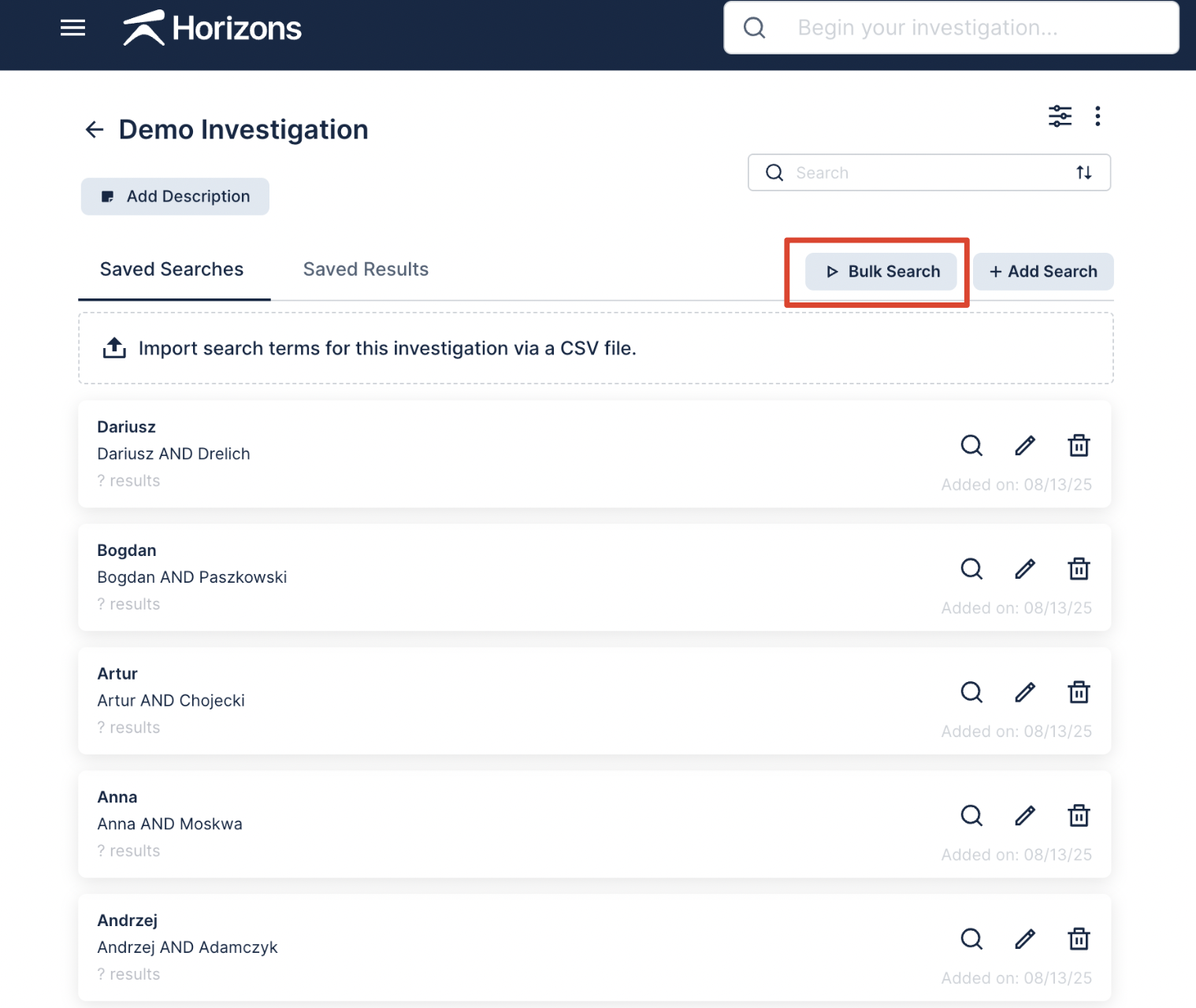
Now you'll see all of of imported terms. Select Bulk Search to run this. Horizons will process all the terms and display a combined results page.
Review the Results
Use the left panel to toggle between each search term and its corresponding results.
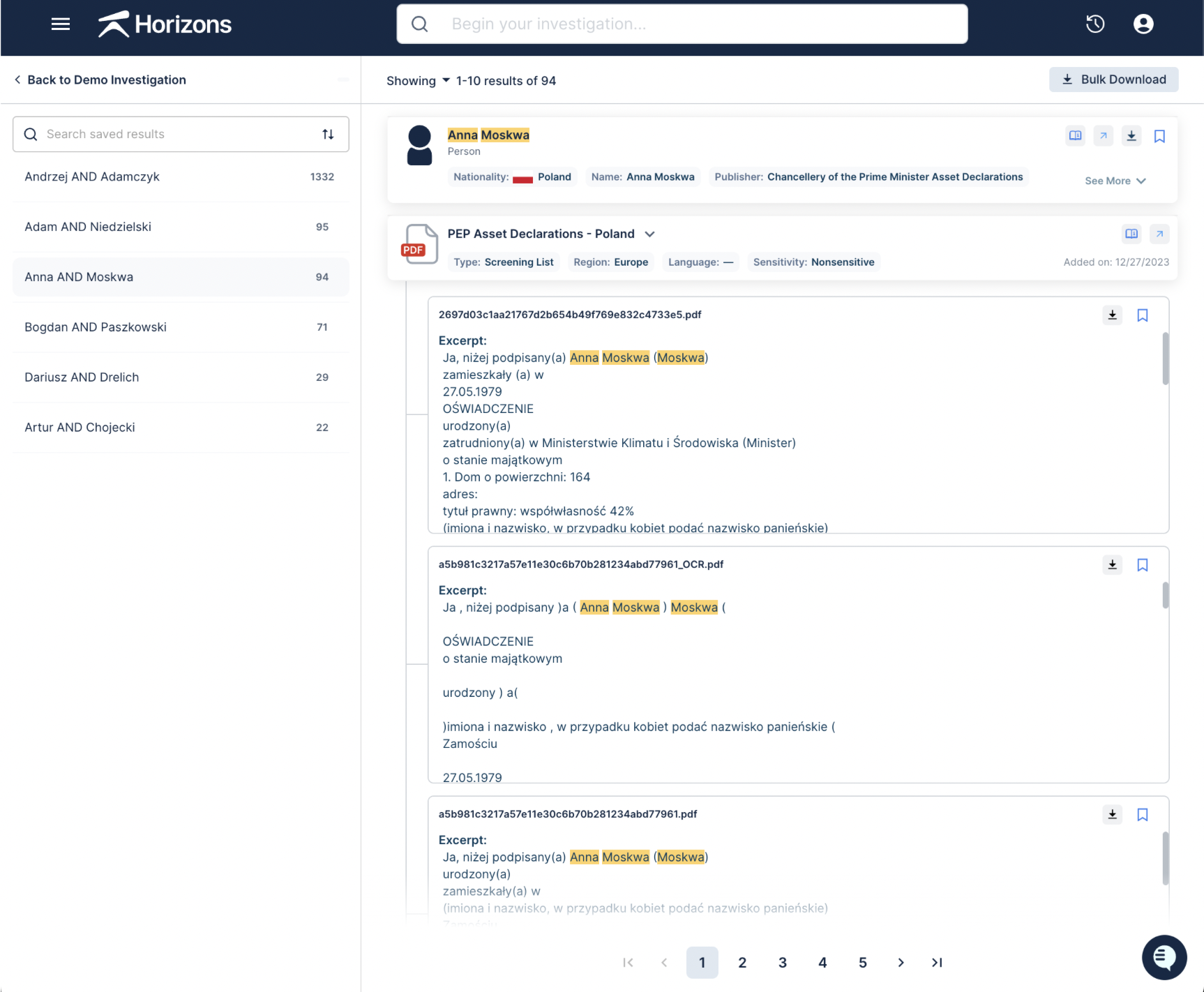
If you find relevant files, you can bookmark them directly within that investigation - keeping your findings organized and easy to revisit.